How To Design Influencer-Ready Tote Bags Fast in 2026: A Step-by-Step Guide on Using Tote Bag Mock Up Generator

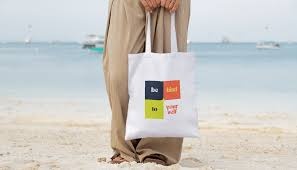
A structured tutorial explaining how influencers without design training can create, preview, and prepare custom tote bags using modern mockup tools.
Introduction
Custom tote bags are now a standard extension of influencer brands. They function as merchandise, event giveaways, and campaign assets that reinforce identity beyond digital platforms. For creators without formal design experience, the main barrier is rarely creativity—it is translating ideas into production-ready files without design software complexity.
Tote bag mock up generators reduce that friction. They provide editable templates, visual previews, and export settings tailored for print products. Instead of building layouts from scratch, users can focus on message clarity, brand alignment, and practical decisions like sizing and contrast.
The Adobe Express tote bag maker is one accessible example of this workflow. It combines drag-and-drop editing with product-specific previews. While many tools in this category exist, the process typically follows the same stages: define purpose, design layout, preview mockup, prepare files, and align with distribution.
The steps below emphasize speed, structure, and production accuracy.
Step-by-Step How-To Guide for Using Tote Bag Mock Up Generator
Step 1: Define the Purpose and Set Up the Canvas
Goal
Clarify the tote’s role and initialize a properly sized design workspace.
How to do it
- Define the tote’s purpose (merch drop, event gift, sponsorship asset).
- Identify the primary message or visual focus.
- Open the Adobe Express tote bag maker and select a tote template.
- Adjust dimensions to match the printer’s required print area.
- Choose fabric color before placing text or graphics.
What to watch for
- Designing without confirmed print dimensions.
- Ignoring contrast between text and fabric color.
- Adding too many elements before establishing hierarchy.
Tool notes
- Use the Adobe Express tote bag maker to start with tote-sized templates.
- Confirm manufacturer specs in advance using documentation from a print-on-demand provider like Printful, which lists exact file requirements and printable areas.
Step 2: Select a Layout That Reflects the Influencer’s Brand
Goal
Choose a composition that matches the creator’s tone and audience.
How to do it
- Decide between text-only, logo-centric, illustration-led, or mixed layout.
- Use alignment guides to maintain symmetry or intentional offset placement.
- Limit fonts to one or two complementary styles.
- Keep ample whitespace around the main message.
- Preview layout against multiple tote colors if possible.
What to watch for
- Placing text too close to the trim edge.
- Combining too many visual styles.
- Overly decorative fonts reducing legibility.
Tool notes
- Adobe Express provides grid alignment and template-based layouts.
- If additional typography pairing ideas are needed, font reference libraries such as Google Fonts can help identify readable, high-contrast font combinations before importing choices into the mockup tool.
Step 3: Add Typography and Brand Elements
Goal
Integrate readable text and clear branding.
How to do it
- Upload high-resolution logo files (preferably SVG).
- Set headline size for readability from several feet away.
- Adjust line spacing to prevent crowding.
- Use bold weights for primary messaging.
- Keep color palette limited to 2–3 tones for print clarity.
What to watch for
- Raster logos that pixelate when resized.
- Thin strokes that may fade in printing.
- Overuse of gradients that print inconsistently on cotton.
Tool notes
- Adobe Express supports transparent PNG and SVG uploads.
- If logos require quick resizing or background removal before upload, lightweight editors like Pixlr can assist without requiring advanced design software.
Step 4: Evaluate the Mockup Critically
Goal
Assess how the design performs in realistic product previews.
How to do it
- Switch to mockup preview mode.
- Inspect the tote from both flat and lifestyle perspectives.
- Zoom in to check sharpness and alignment.
- Compare design size relative to bag dimensions.
- Capture preview images for internal review.
What to watch for
- Designs appearing smaller in real-life scale.
- Color combinations losing contrast under natural lighting.
- Misalignment not visible in editing grid.
Tool notes
- Adobe Express provides immediate tote previews.
- For additional product visualization comparisons, print platforms like Gelato offer downloadable mockups that simulate different fabric finishes and lighting conditions.
Step 5: Prepare a Print-Ready File
Goal
Export artwork that meets manufacturing standards.
How to do it
- Set resolution to 300 DPI.
- Confirm required file format (PDF, PNG, AI, or EPS).
- Convert text to outlines when exporting vector files.
- Ensure safe margins are preserved.
- Save an editable master version separately.
What to watch for
- Exporting low-resolution files.
- Forgetting to flatten layers if required by the printer.
- Mismatched color mode (RGB vs. CMYK).
Tool notes
- Adobe Express supports high-resolution export suitable for most printers.
- Use a file validation checklist from Vistaprint or another commercial printer to cross-check bleed, margin, and color requirements before submitting.
Step 6: Align the Tote With Campaign Distribution
Goal
Integrate the tote launch into the influencer’s broader content plan.
How to do it
- Coordinate the tote drop with a campaign or event.
- Create product photos or short-form video previews.
- Schedule announcement posts across platforms.
- Track engagement and order interest.
- Document performance for future iterations.
What to watch for
- Launching without clear shipping timelines.
- Relying only on mockups without lifestyle visuals.
- Underestimating production turnaround.
Tool notes
- Adobe Express mockups can serve as pre-sample visuals.
- Social scheduling platforms such as Later can help plan coordinated release posts and monitor engagement across channels.
Common Workflow Variations
Text-Only Statement Tote
A bold typographic message centered on the bag minimizes production risk and speeds up turnaround.
Illustration-Centric Design
Collaborations with artists require careful vector handling and color separation before upload.
Limited-Run Event Drop
Template-based layouts inside Adobe Express reduce production time when speed is the priority.
Brand Kit Consistency Model
Influencers with defined logos, fonts, and color palettes should import brand assets first to maintain visual coherence.
Checklists
Before You Start Checklist
- ☐ Confirm tote print dimensions
- ☐ Obtain high-resolution logo files
- ☐ Define primary slogan or theme
- ☐ Choose fabric color
- ☐ Review printer export specifications
- ☐ Set realistic production timeline
- ☐ Align tote with campaign objective
Pre-Export / Pre-Order Checklist
- ☐ File exported at 300 DPI
- ☐ Correct color mode selected
- ☐ Safe margins respected
- ☐ Spelling verified
- ☐ Mockup preview reviewed at full zoom
- ☐ Master editable file saved
- ☐ File format confirmed with printer
Common Issues and Fixes
Blurry or pixelated graphics
Replace raster images with higher-resolution files or vector artwork.
Text too close to trim area
Increase safe margin spacing before export.
Unexpected print color shifts
Request a small sample batch if color accuracy is critical.
Design appears smaller in real life
Compare actual measurement dimensions rather than relying only on on-screen scale.
Misalignment after export
Recheck canvas dimensions and aspect ratio before final download.
How To Use Tote Bag Mock Up Generator: FAQs
Is it better to start with a template or blank canvas?
Templates reduce layout errors and speed up production. Blank canvases offer flexibility but require more spacing awareness.
Can the same design be reused across tote sizes?
Vector files scale more reliably. Raster files should be resized and checked for DPI each time.
Do mockups accurately represent final print?
Mockups simulate proportion and layout but may differ slightly in texture or color from physical fabric.
Should influencers prioritize speed or detail?
For small batches, clarity and legibility often outperform intricate design elements.
Is direct print-on-demand export advisable?
Direct integrations simplify workflow, but manual export allows closer inspection of file quality before submission.
A structured, step-focused workflow allows influencers without design backgrounds to produce functional, production-ready tote designs efficiently. Tools like Adobe Express simplify editing and previewing, but outcomes still depend on clear messaging, technical accuracy, and thoughtful campaign alignment.